Website Hacked? What to Do in the First Hour

If your website is hacked, do not delete anything in the first hour. Keep the evidence, stop the damage to visitors, contact your host and change passwords from a device you know is clean. Cleanup and restoring a backup come only once you know how the attacker got in.

The first reaction is almost always the same: delete the suspicious files and restore yesterday's backup. It feels like a fix, but it erases the only trace of how the attacker got in. If the hole stays open, the same attacker comes back, often the very next night.

A hacked website is more than an embarrassment in front of customers. It can redirect visitors to fake shops, send spam from your server or steal data from forms. Google may then show a warning next to your result saying the site may be hacked, and your host may suspend the account.

Below is the order of steps for the first hour, minute by minute, followed by what to do in the days after. You do not need to be a developer to handle the first hour. You only need to know where your hosting and admin panel login details are.

IT Expert is a team from Belgrade that builds and maintains websites. We monitor the sites we maintain every day and apply patches as soon as they are released, because an outdated plugin or system is one of the most common ways in.
How to tell your website is hacked

01Redirects to other sites

Visitors on phones or from Google search end up on gambling sites or fake shops. You often do not see it from your own computer, because attackers deliberately target only some visitors.

02Strange search results

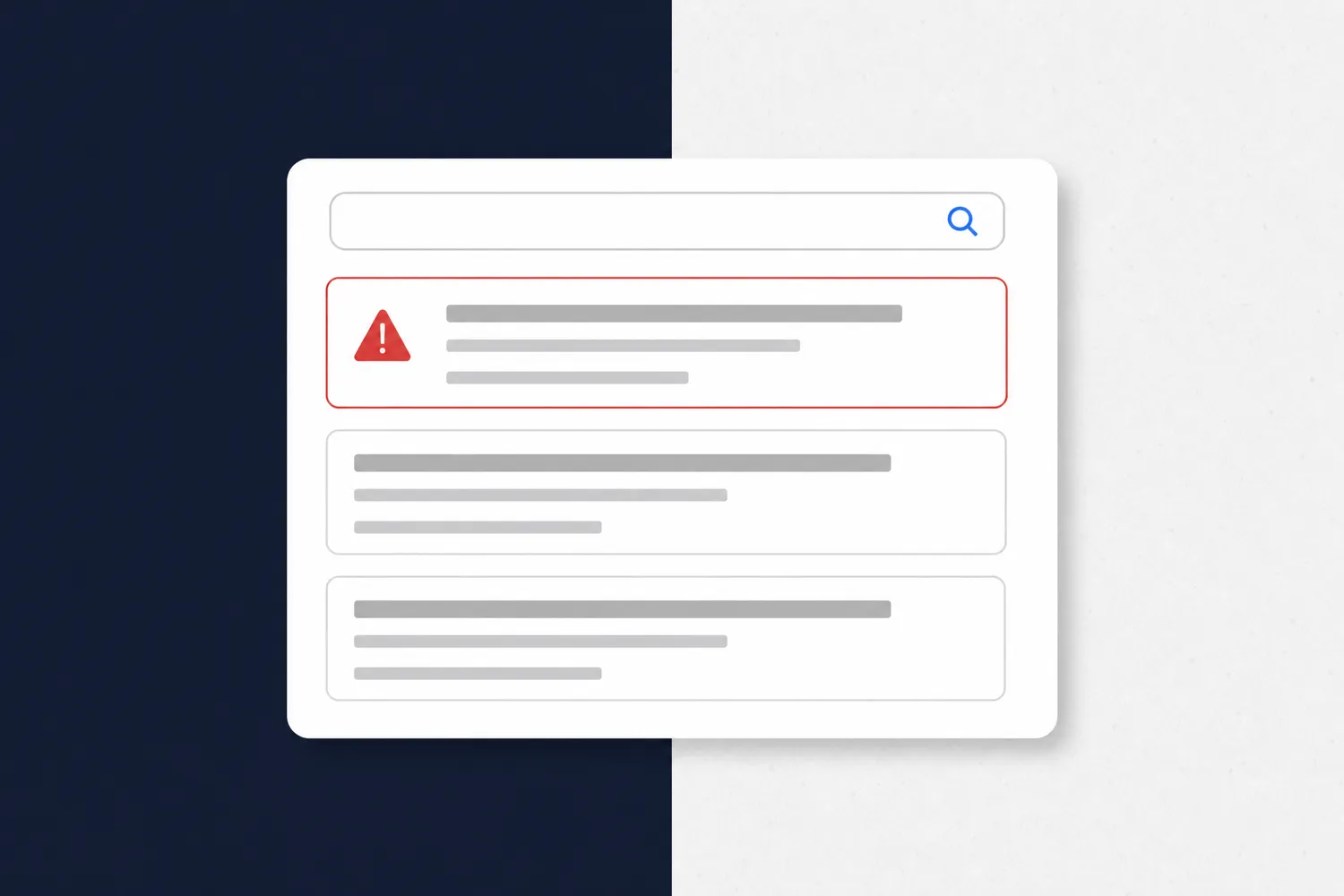
Type site:yourdomain.com into Google. Pages you never created, in Japanese or advertising pills, mean spam has been injected into the site.

03A warning next to your result

Google may show a message next to your result saying the site may be hacked, and Chrome a red warning screen if the site spreads malicious software.

04Unknown administrators

There is a user in the admin panel you never added, or you cannot log in because someone changed the password.

05A message from your host

The host reports that spam is being sent from your account or that it found malicious code, and sometimes suspends the account right away.

06A sudden slowdown

The site is suddenly slow and the server overloaded. Sometimes that means someone is using your site to send spam or attack others.

How to check whether your site is really hacked

How to check whether your site is really hacked

Check from two devices and from search, not only from your usual browser. Many attacks show up only for visitors who come from Google or from a phone, while the owner typing the address directly sees a normal site.

Open the site on a phone over mobile data, then search for it on Google and click the result. Next, type site:yourdomain.com and look through the first two pages of results. Titles you do not recognize are a clear sign.

If you have Google Search Console, open the Security issues report. Google lists what it found there and gives sample infected URLs. It is also where you later ask for the warning to be removed.

Finally, look at the user list in the admin panel and the last modified dates of files at your host. A file changed at three in the morning when nobody on your side was working on the site is worth writing down.

The first hour, step by step

Order matters more than speed. Each step protects something: the first keeps the evidence, the second protects visitors, the third and fourth close the door the attacker came through.

  1. By minute 5, keep the evidence: take screenshots of the message, redirect or warning and note the time. Do not delete suspicious files or restore a backup, because the files and server logs are the only trace of how the attacker got in.
  2. By minute 10, stop the damage: if the site spreads malicious software, redirects visitors or has a payment or login form, put it in maintenance mode or ask your host to take it offline temporarily. An hour offline is better than harming customers.
  3. By minute 20, contact your host: the host sees the access logs and often has backups you do not. Ask which files were changed and when, and whether only your site or the whole server was attacked.
  4. By minute 35, change passwords: from a clean device, change the passwords for the hosting panel, FTP or SFTP, the database, the site admin panel and the email that receives password reset links. Turn on two-step login wherever it exists.
  5. By minute 45, check the accounts: remove access for unknown administrators, but first write down their usernames and creation dates. Log out all active sessions so everyone has to log in again with the new password.
  6. By minute 60, assess the data: if the site stores orders, customer accounts or form messages, write down what could have leaked. That decides whether you have a legal duty to notify the Commissioner.
Why you change passwords before cleaning up

Why you change passwords before cleaning up

You change passwords before cleaning up because an attacker who still has access can put back everything you delete. If they got in with a stolen FTP or admin password, a cleaned site is infected again the next time they log in.

Change every access route to the site, not only the admin panel: the hosting panel, FTP or SFTP, the database and the email that receives password reset links. Email is often forgotten, and whoever has the email can reset everything else.

Every new password has to be different and long. The easiest way is a password manager, so you do not have to remember any of them. Two-step login for hosting and the admin panel stops most attacks that rely on a stolen password.

If an agency, a developer or a former employee had access, change their access too. It is not an accusation, just a routine step: after an attack nobody knows for sure whose account was used.

When it is safe to restore a backup

When it is safe to restore a backup

You can restore a backup only once you know how the attacker got in and that hole is closed. A backup puts the files back in their old state, but also the old weakness, so a site without updates stays just as vulnerable.

The second question is whether the backup is clean. Attacks often start weeks before anyone notices, so even yesterday's copy may contain injected code. Several copies from different days, stored off the server, help a lot.

So the order is: find how they got in, close the hole, restore the latest clean backup or clean the existing site, update the system and every plugin, and only then put the site back online.

If there is no backup, the site is cleaned by hand: comparing files with the original versions of the system and plugins and reviewing the database. It takes longer, but it can be done.

How to remove the Google warning

How to remove the Google warning

You remove the Google warning by cleaning the site completely and then requesting a review in Google Search Console, in the Security issues report. Google removes the warning only after it checks that the site is fixed.

Do not request a review too early. Google says that requesting a review while the problem still exists only extends the time the site is flagged as dangerous. In the request, briefly describe what you did: what was removed and which hole was closed.

According to the guide on web.dev, a malware review usually takes a few days, while a review for injected spam can take up to several weeks, because people check it manually.

If spam pages were injected, also submit a new sitemap. The old spam URLs should return a 404 or 410 error so Google drops them from the results over time.

How to keep it from happening again

How to keep it from happening again

To keep an attack from happening again, the site has to be updated as soon as patches are released, not once a month. Attacks on smaller sites often do not target your business in particular: automated tools look for known holes in plugins and find sites nobody has updated.

With WordPress sites the biggest risk is plugins. Each plugin is code from a different author with its own patch schedule. The fewer you have, the fewer doors there are. We write more about this in WordPress or a custom website.

Maintenance with us means daily monitoring of the site, patches as soon as they are released and backups stored off the server, from several days. When something happens, we know what changed and when, so the first hour does not start from zero.

  • Update the system, theme and plugins as soon as patches are released
  • Delete plugins and accounts you do not use
  • Turn on two-step login for the admin panel and hosting
  • Keep backups off the server, from several different days
  • Watch Search Console so you see a warning right away

Frequently asked questions about hacked websites

Not if you do not know how the attacker got in. A backup restores the old files but also the old weakness, so the site is often infected again within days. Close the hole and change passwords first, then restore a clean backup.
Many attacks deliberately show up only for some visitors, for example those coming from Google or from a phone. Check the site on a phone over mobile data and click through to it from Google search.
Once you clean the site and request a review in Search Console, Google says a malware review usually takes a few days and a review for injected spam up to several weeks. Requesting a review before cleanup only extends the warning.
If personal data could have leaked, such as customer details or form messages, the Serbian Law on Personal Data Protection requires you to notify the Commissioner without undue delay, where possible within 72 hours. You can also report the attack to SRB-CERT.
You can handle the first hour yourself: evidence, maintenance mode, your host and passwords. Finding the hole and cleaning the code takes experience, because one leftover file brings the whole problem back. After a consultation, you choose whether we do it or someone else does.